


Product
LiveOcto
A native macOS download manager: it splits files over several connections, resumes interrupted downloads and takes over downloads from Chrome.
Facts
- Status
- Live
- Platform
- macOS 26 or later + Chrome extension
- Flows
- Parts · Resume · Chrome · Video · Menu bar
- Engine
- Go engine, SwiftUI app
- Year
- 2026
FIG. 01 / PRODUCT FILM
Muted preview · play with sound for the full cut
Who it's for
Anyone on a Mac who downloads big files (disk images, archives, video) and wants them faster, resumable and in one list, from Chrome or any Chromium-based browser such as Edge, Brave, Arc or Vivaldi.
The problem
A browser usually fetches a file over a single connection, and when a big download is interrupted you can end up starting again. A page with a dozen files means a dozen clicks, and videos on a page have no download button at all.
The product
Octo splits a file into parts and downloads them over several connections at once. A download starts with one connection and doubles it every 2 seconds, up to the number you set (1, 2, 4, 8, 16, 24 or 32; 8 by default), and the engine always splits the largest remaining part in half. Pause, quit the app or lose the network and the download resumes where it stopped, as long as the server supports Range requests; an expired link can be renewed and the download continues if the file size is unchanged. A Chrome extension hands clicks on files over to Octo (hold Option to let Chrome download instead) and adds a button to videos in the page that picks up plain video files, HLS and DASH streams with a choice of quality. Protected (DRM) videos and live streams are never downloaded, and Octo does not try to bypass the protection. Queues with start and stop times, batch downloads, a total speed limit, per-site logins kept in the Keychain and a menu bar icon with every active download complete it. The app interface is in Turkish. Octo has no telemetry and contacts only the servers of the files you download.
FIG. 02 / HOW IT WORKS
How it works
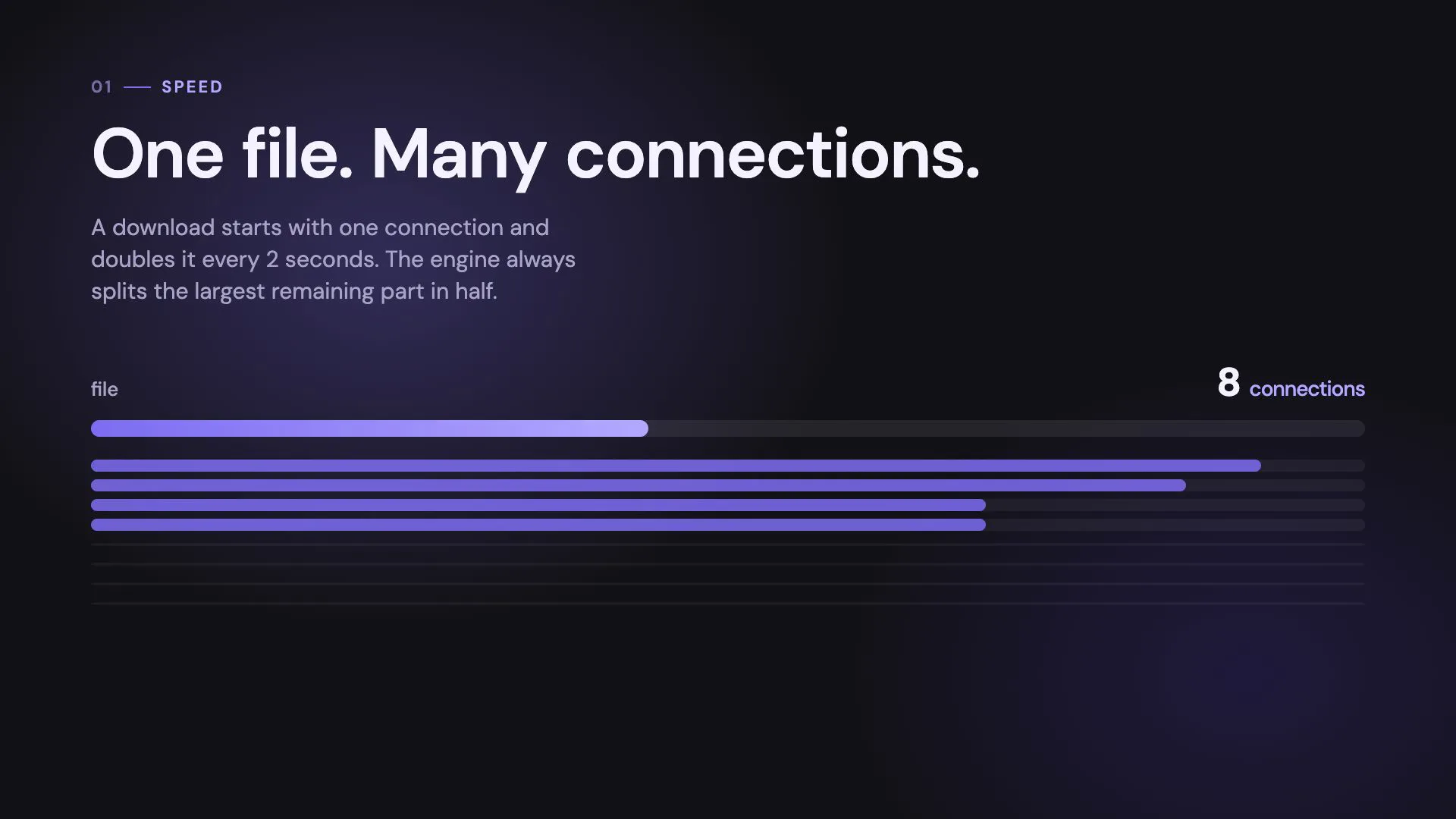
Step 1: Parts
A download starts with one connection and doubles it every 2 seconds, up to the number you set. The engine always splits the largest remaining part in half, so every connection stays busy until the file is whole.
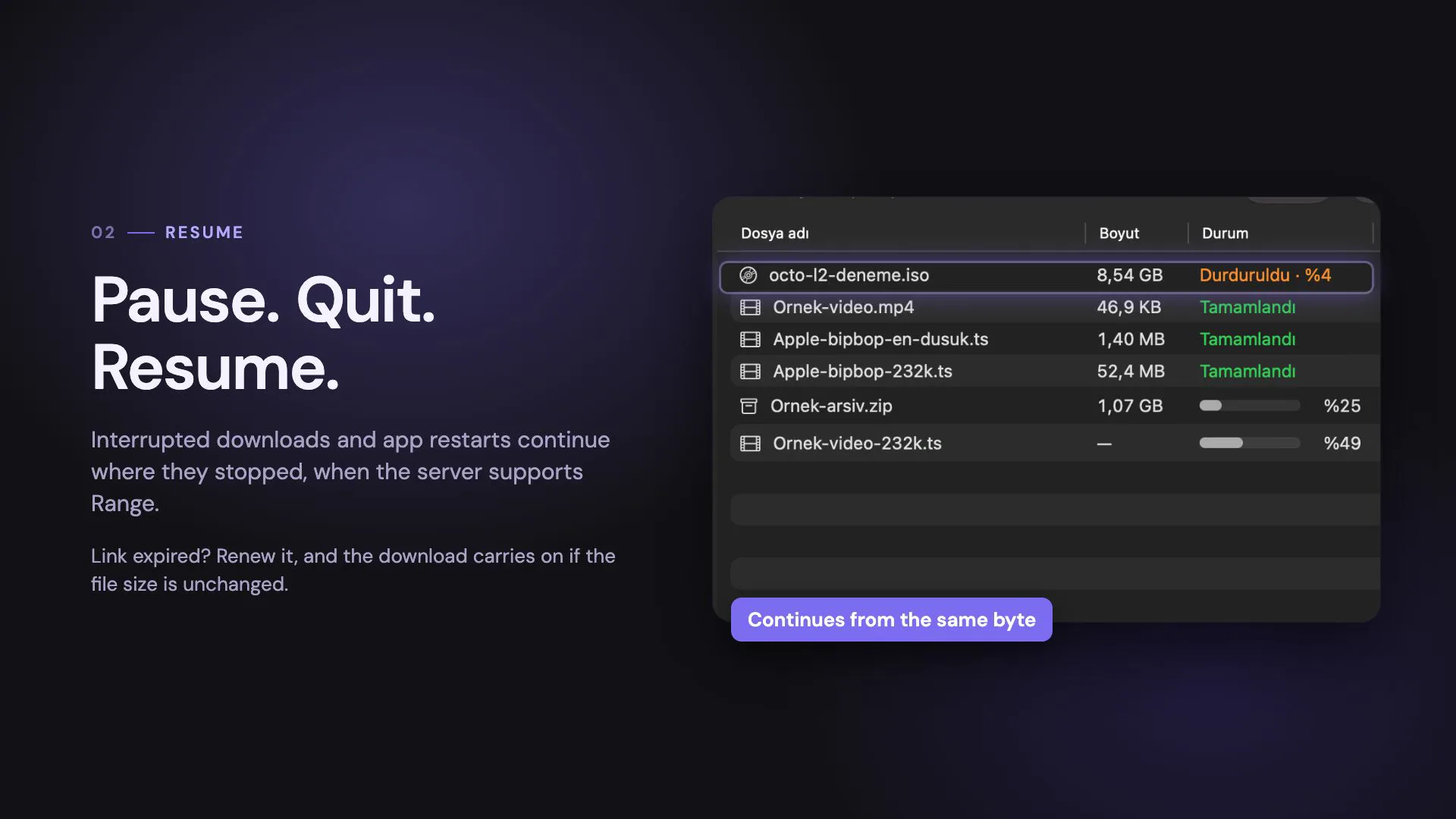
Step 2: Resume
Pause, quit the app or lose the network: the download picks up where it stopped when the server supports Range requests. An expired link can be renewed, and the download carries on if the file size is unchanged.
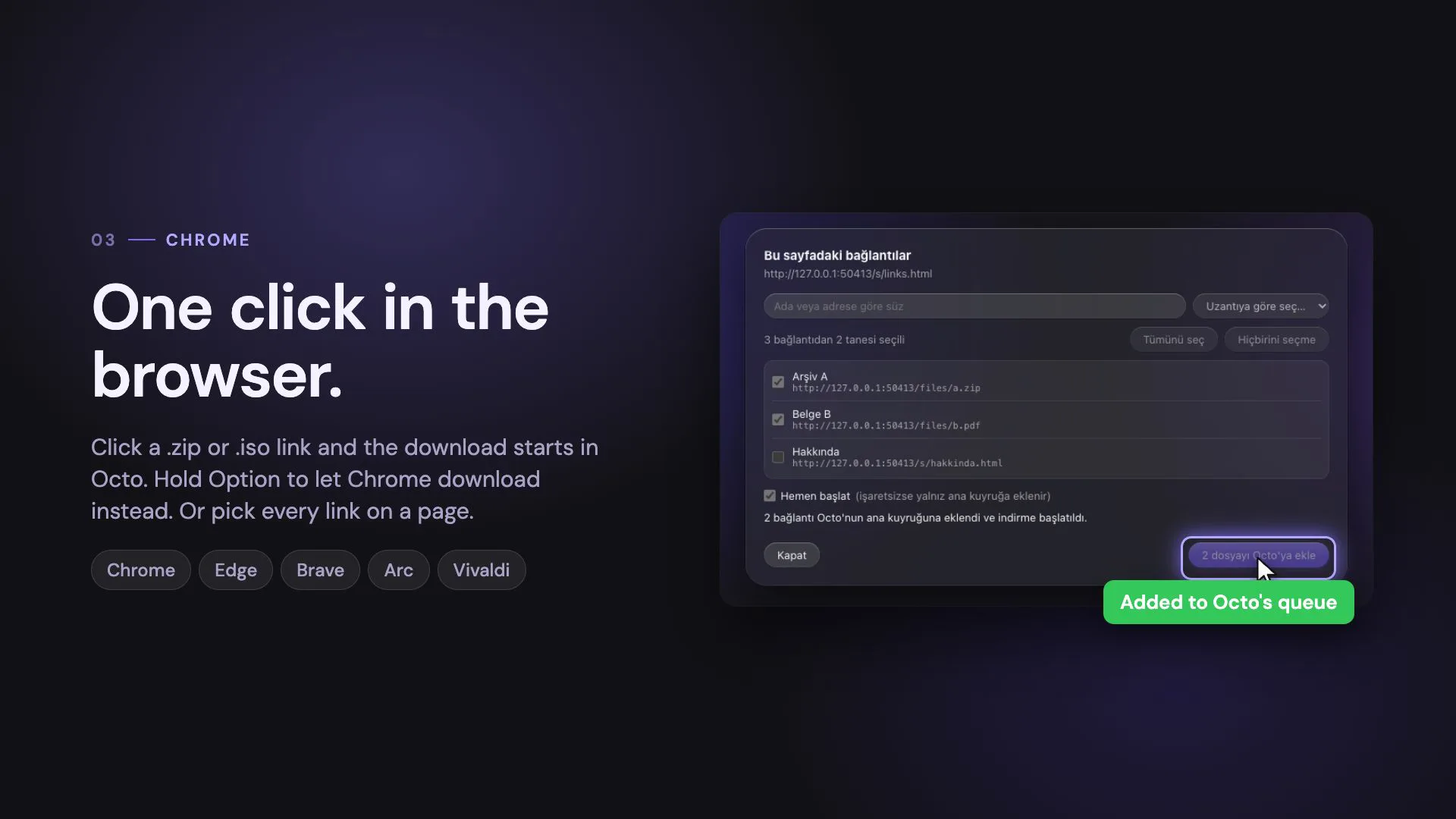
Step 3: Chrome
A click on a .zip or .iso link starts the download in Octo instead of the browser; hold Option to let Chrome download instead. A right-click menu sends every link on a page to Octo, with a picker to choose which.
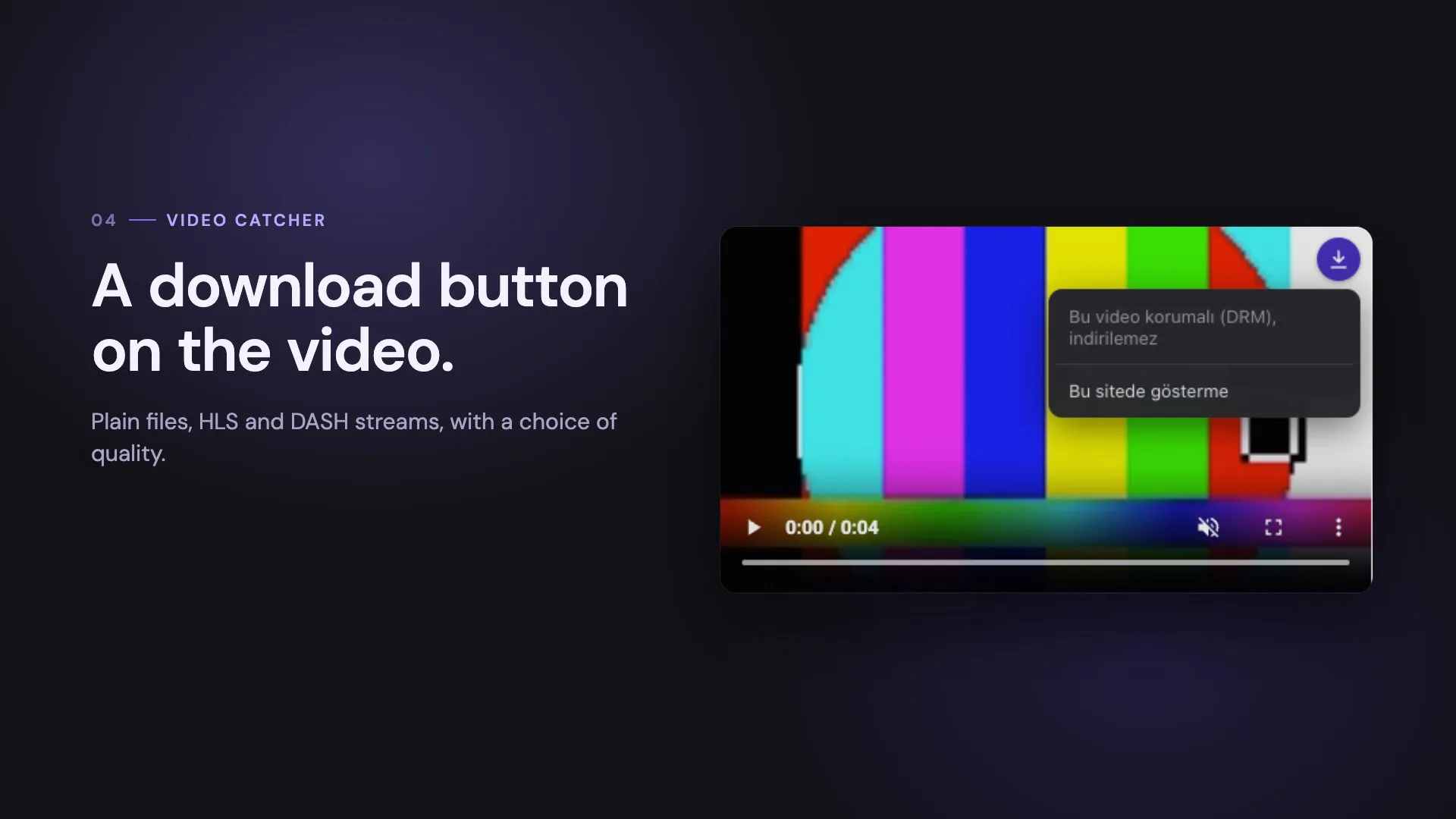
Step 4: Video catcher
A small button appears on videos in the page and handles plain video files, HLS and DASH streams, with a choice of quality. Protected (DRM) videos are never downloaded, and live streams are not supported.
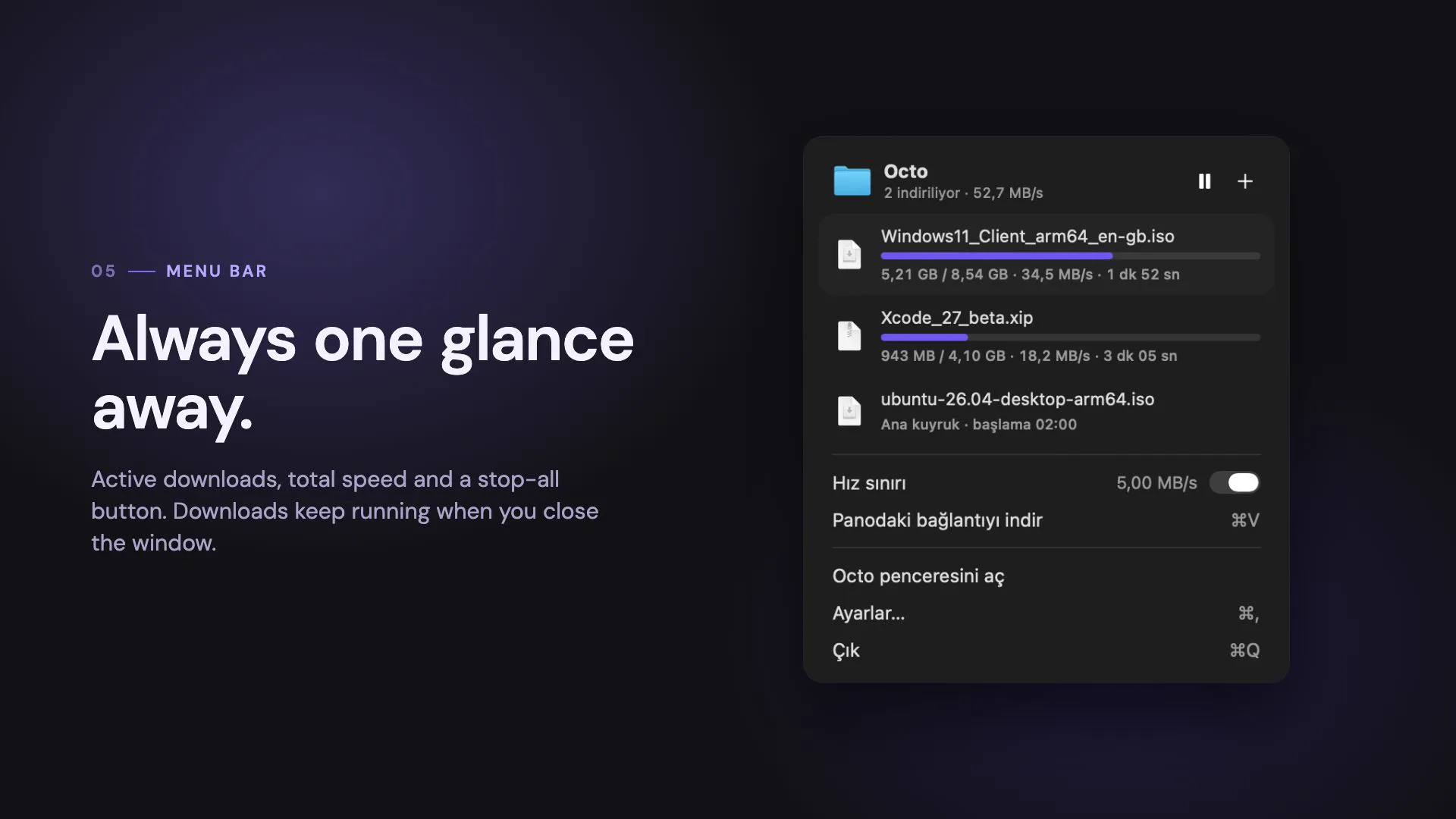
Step 5: Menu bar
The menu bar icon shows every active download, the total speed and a stop-all button. Downloads keep running when you close the window.
FIG. 03 / SCREENS
The product, screen by screen
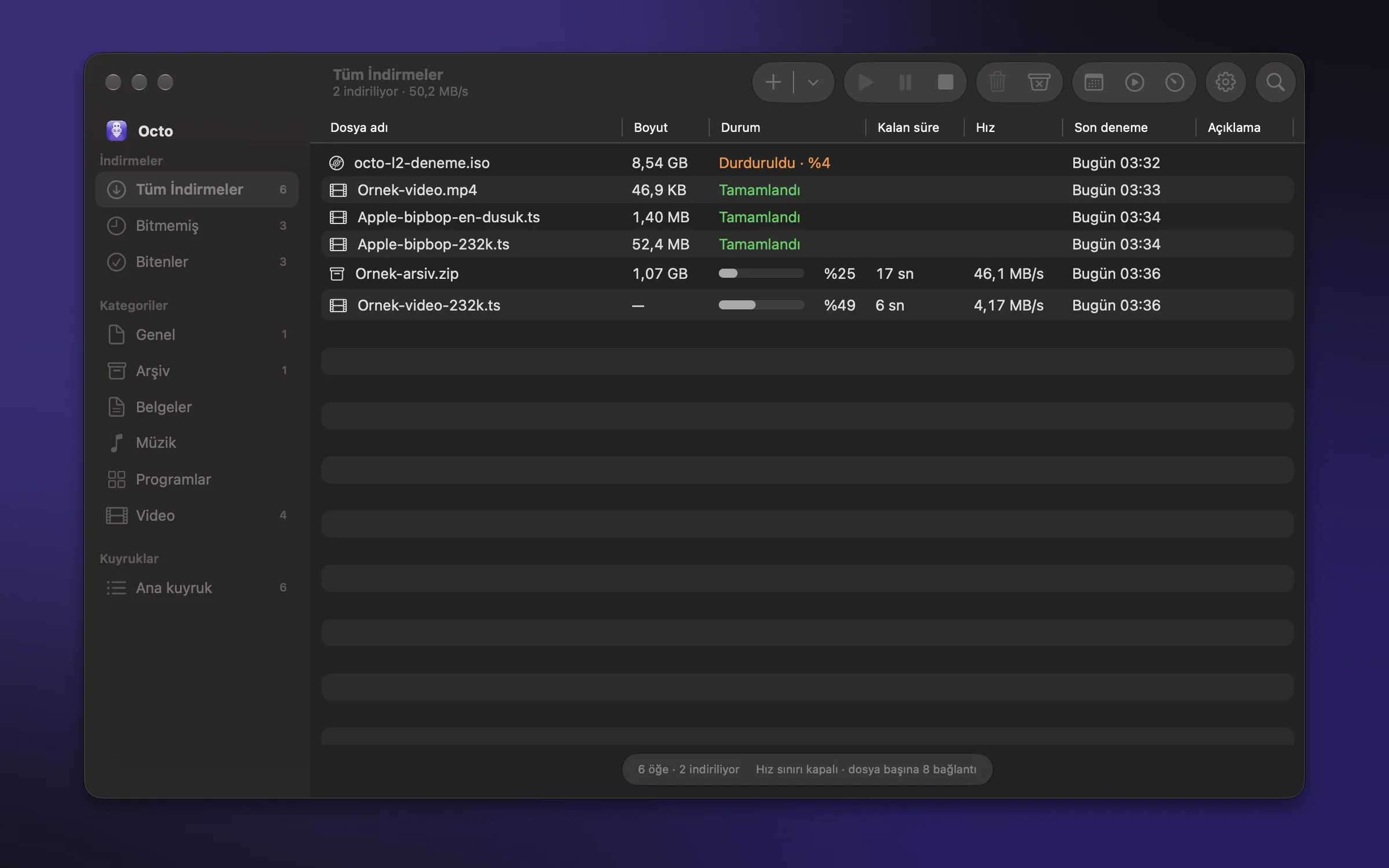
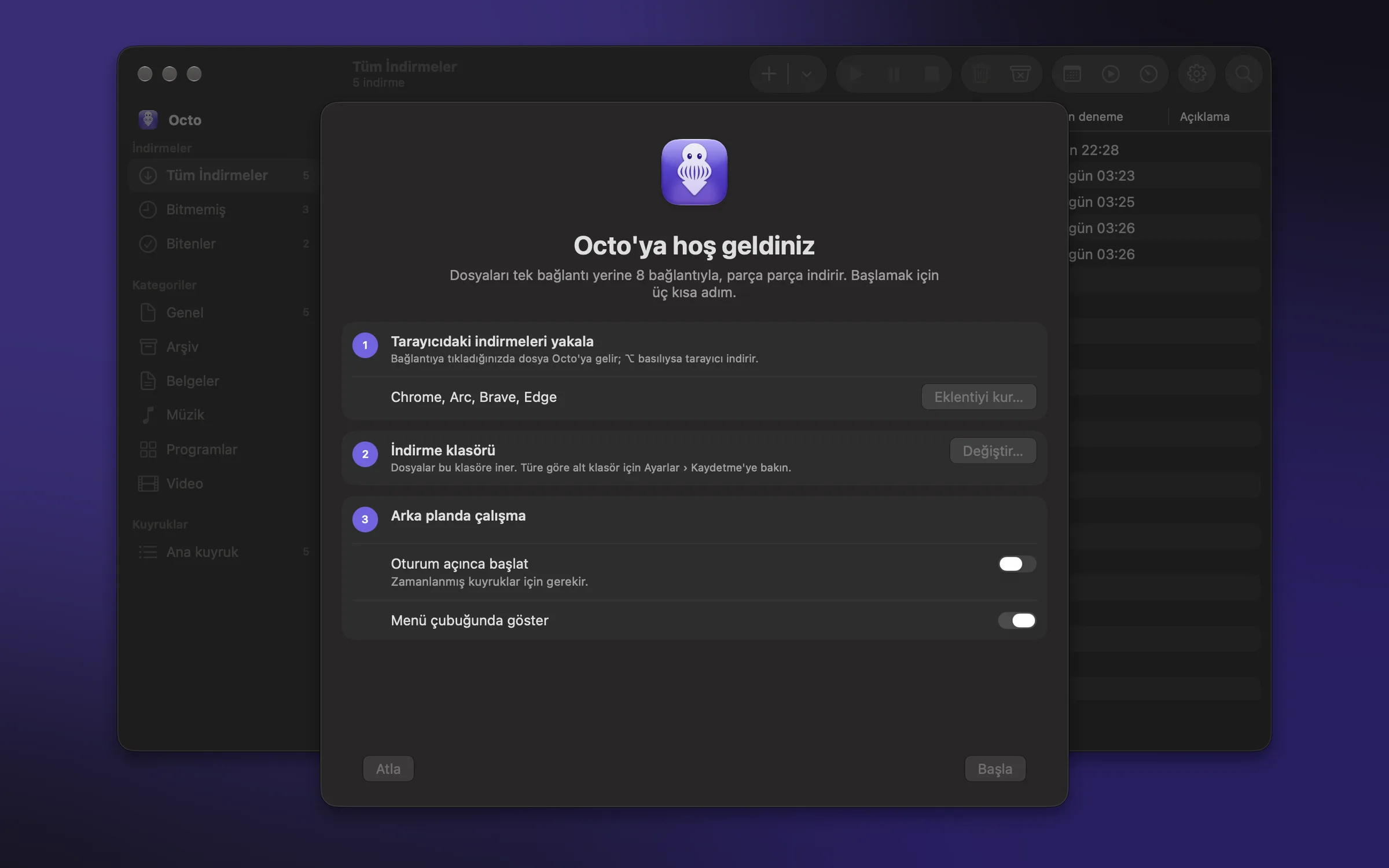
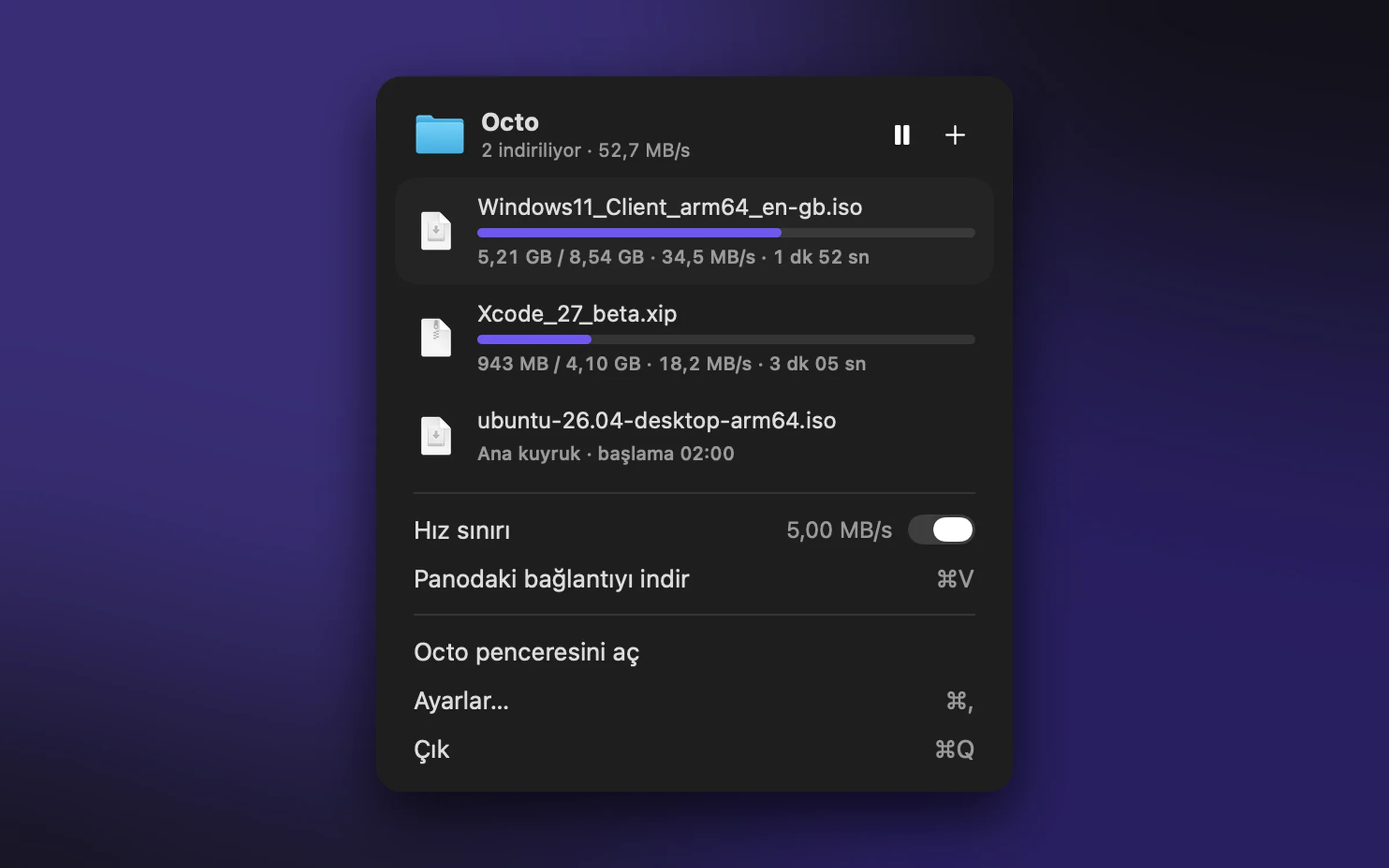
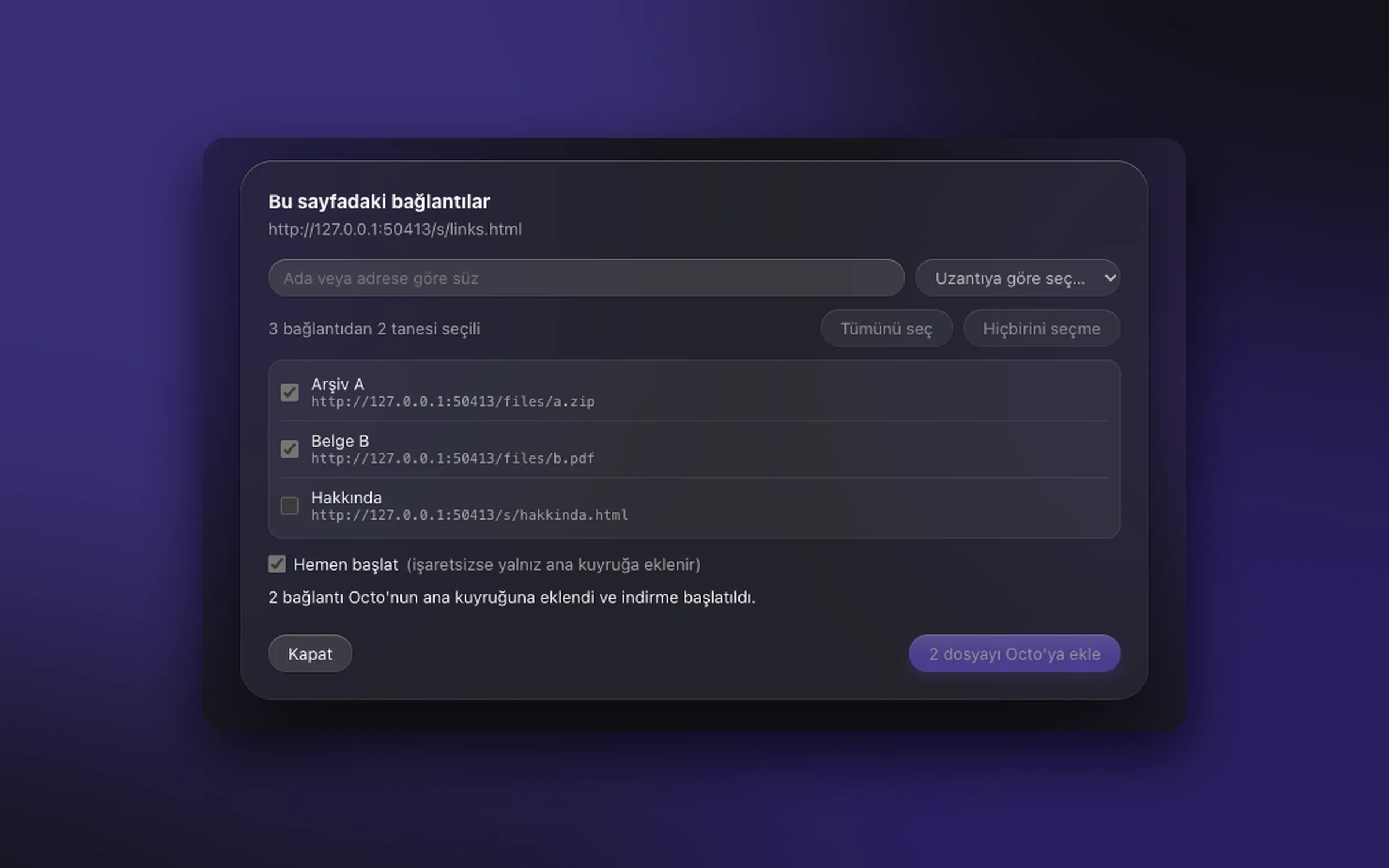
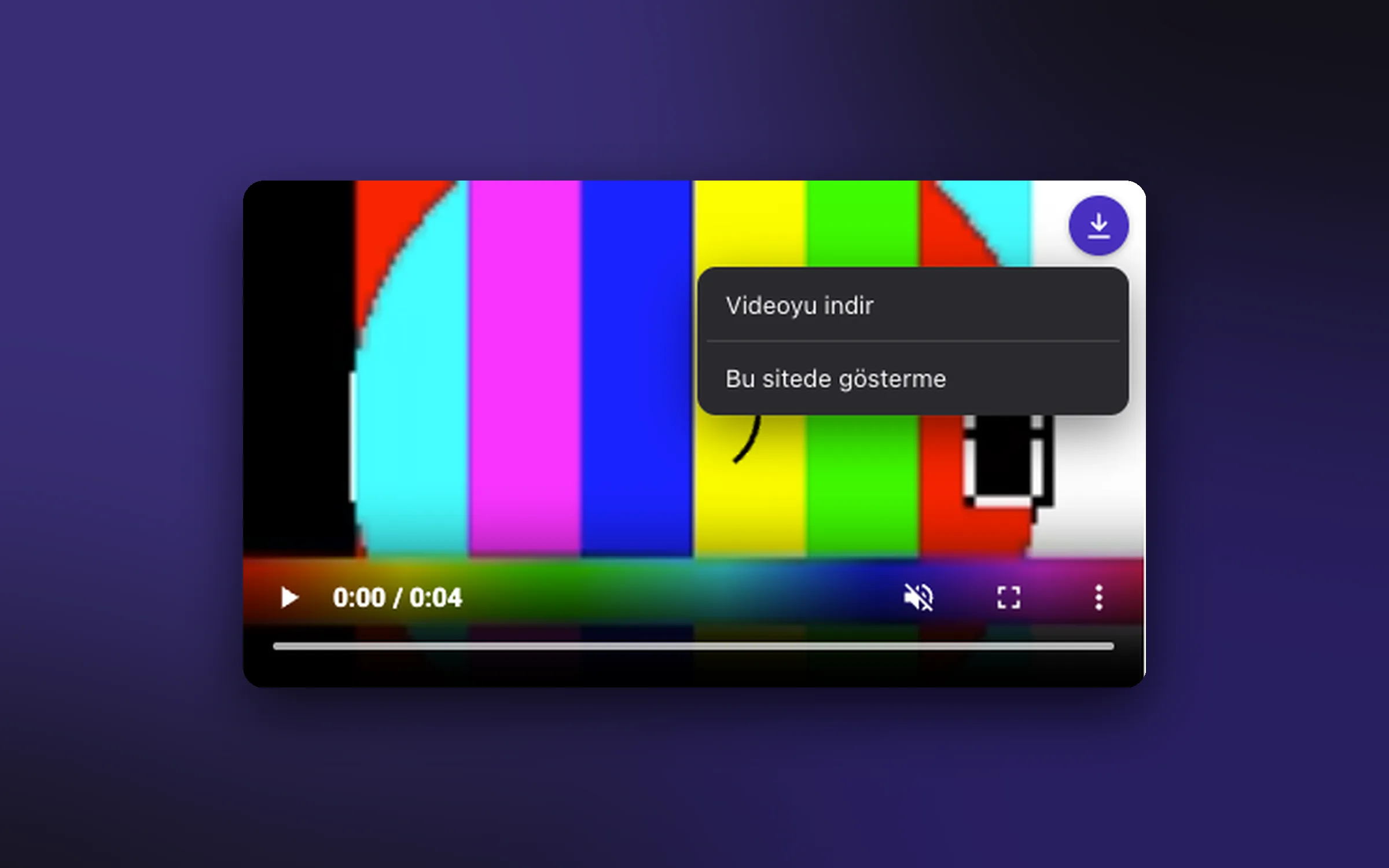
FIG. 04 / DESIGN DIRECTION
Design direction
A native macOS window in Apple's Liquid Glass style: a dark list on a dark window, system type (San Francisco) so it reads like the rest of the Mac, and one accent, the purple of the octopus icon, for progress bars and primary actions. Status gets colour only when it means something: orange for paused, green for finished.
Palette
- Window#232222
- Row#2B2A29
- Octo purple#593CD0
- Icon white#F3F1FB
Type
- San Francisco (system)
- Everything in the app, so it follows the system's size and weight settings
Related systems

ZikirChain
LiveA dhikr counter that feels like prayer beads: the teacher publishes the day's program, you tap, a bead slides. No sign-up, no login.
Genjutsu
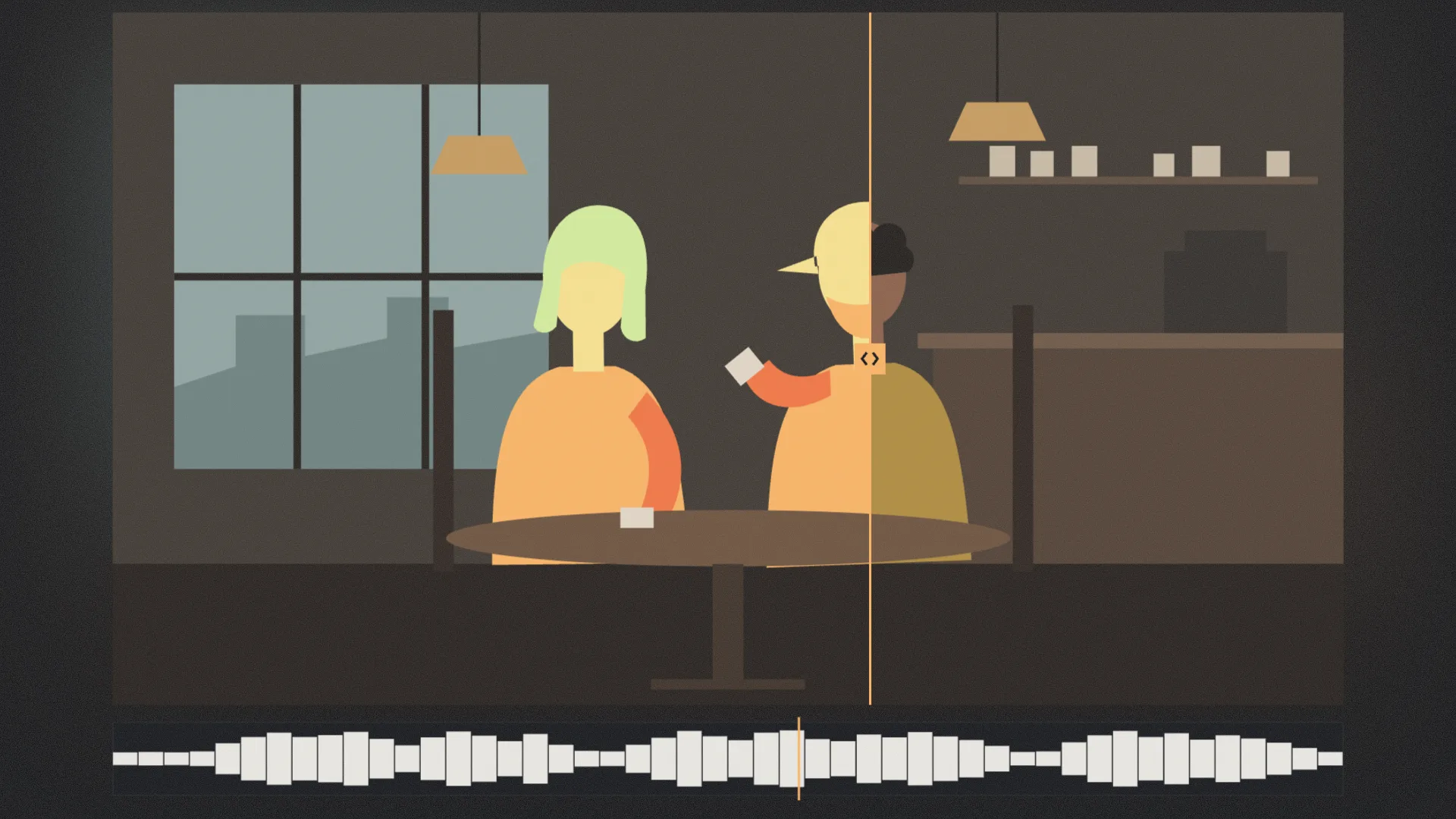
LiveGenjutsu replaces the people in a video and keeps the scene, camera, timing and full original soundtrack, with a mask check before every generation.
Mailsort
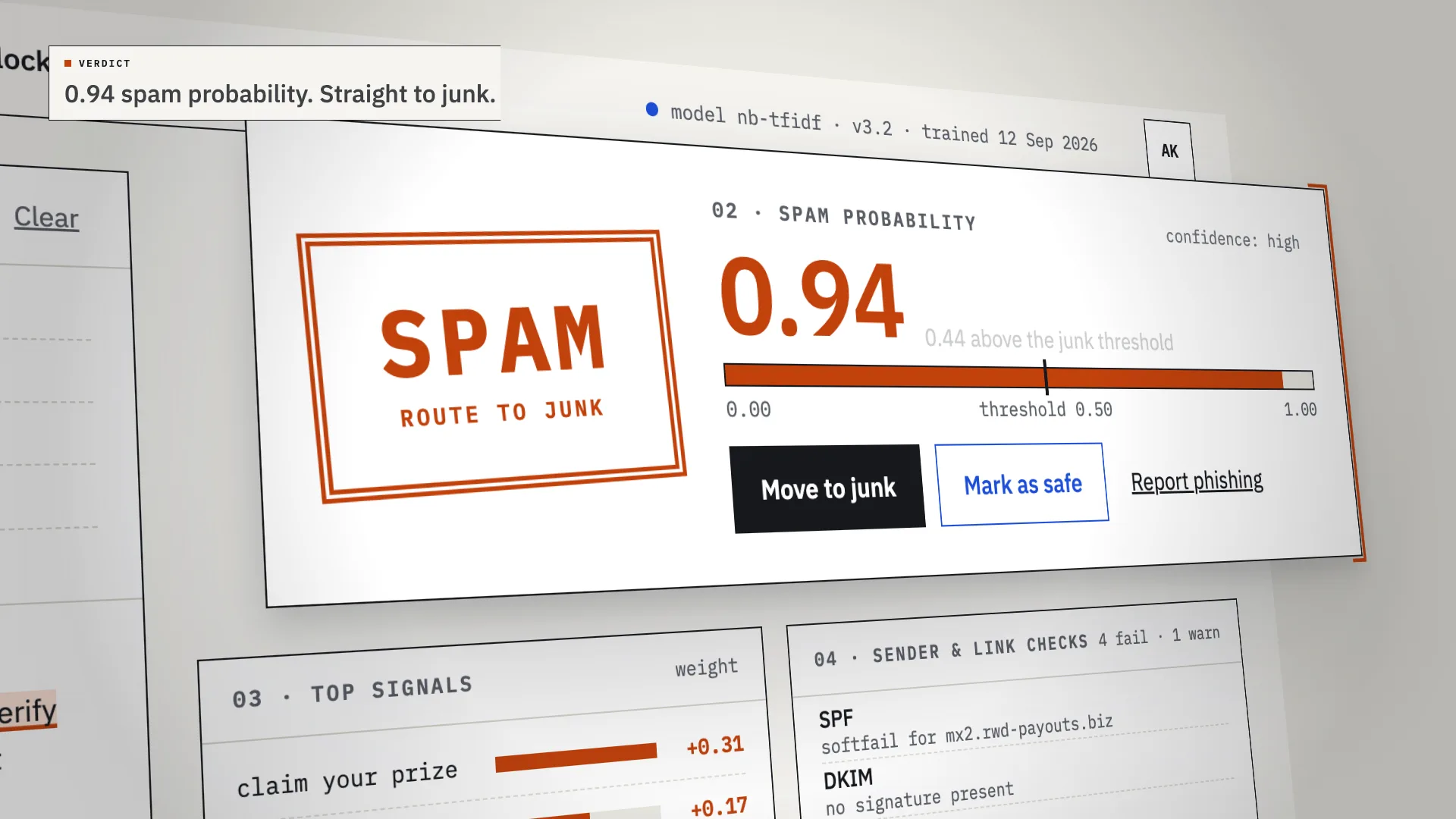
LiveAn AI spam classifier that shows its work: every verdict comes with the phrases, sender checks and links that decided it.
Have a project like this?
Tell me what you want to build. We map it on a 30-minute call.