


Product
LiveEasyPass
A small Windows vault with a Chrome extension that fills client logins: type part of a name next to the login form, press Enter, and you are in.
Facts
- Status
- Live
- Platform
- Windows 10/11 + Chrome extension
- Flows
- Fill · Save · Update · Search · Languages
- Engine
- .NET 10 app and helper, Manifest V3 extension
- Year
- 2026
FIG. 01 / PRODUCT FILM
Muted preview · play with sound for the full cut
Who it's for
Accountants, bookkeepers and office staff who sign in to the same portals for many clients, on Windows with Google Chrome.
The problem
Accountants and office staff sign in to the same tax, invoicing and bank portals for dozens or hundreds of clients. Chrome's password manager shows those logins by username only, in one long list, without saying whose login is whose, and it can get slow on login pages once it holds thousands of entries.
The product
EasyPass keeps the logins in one vault file on Windows, under each client's name. A Chrome extension talks to a small helper program through Chrome native messaging, with no local port, and Chrome starts the helper by itself, so it works with the app closed. On a login page a panel opens next to the username field with the clients saved for that site only; typing in the field narrows the list by name or username, and Enter fills the username and password. After a sign-up, the extension offers to save the login with the client's first and last name filled in and everything else the form asked for under the site's own labels; ID, passport, card and bank numbers stay masked until you press their eye. Change a password on a site after signing in with EasyPass and it offers to update the saved one. The toolbar button searches every site's clients, and the Windows app adds, edits and deletes them. The vault is a single AES-256-GCM file without a master password, so there is nothing to forget and it can live in a Google Drive or Yandex Disk folder; anyone with the file can read it, so it belongs in a folder only you can access. Every save keeps the previous version as a .bak. The app, the extension and the setup are in English, Russian and Turkish. EasyPass has no telemetry and makes no network requests of its own.
FIG. 02 / HOW IT WORKS
How it works
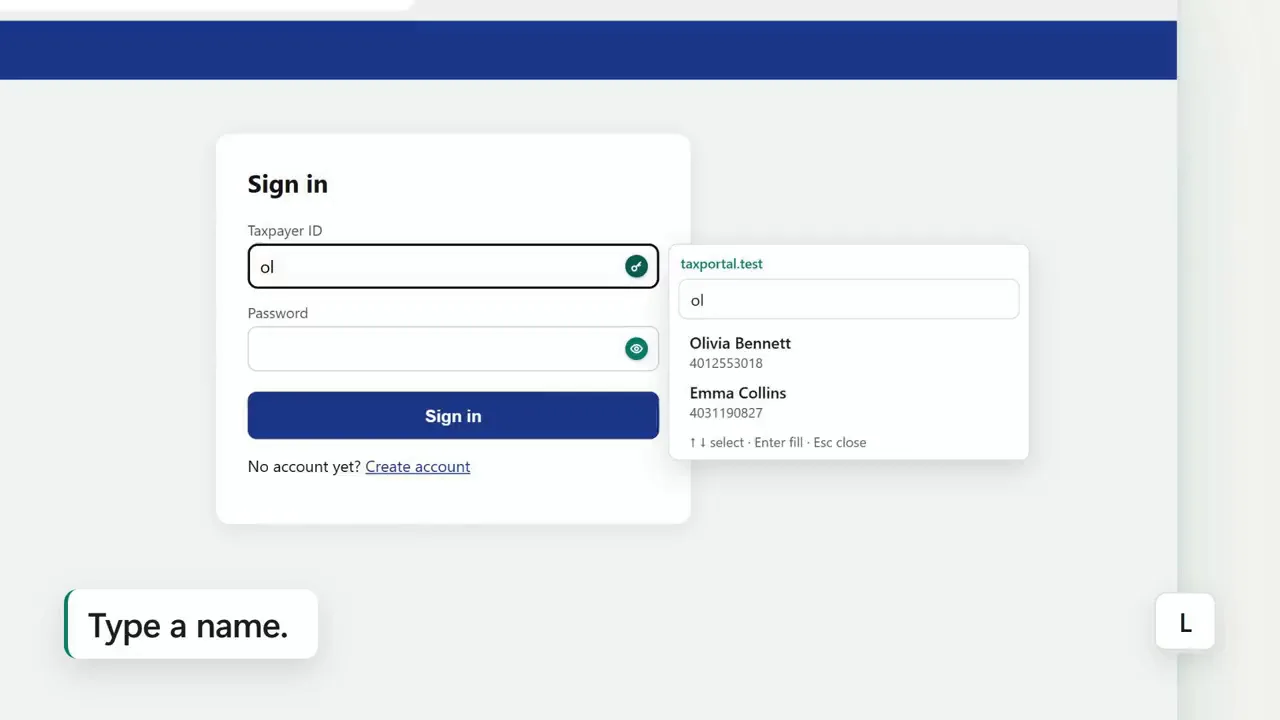
Step 1: Fill
On a login page a panel opens next to the username field with the clients saved for this site only. Type part of a name, press ↓ and Enter: the username and password are filled, and the caret never leaves the page's field.
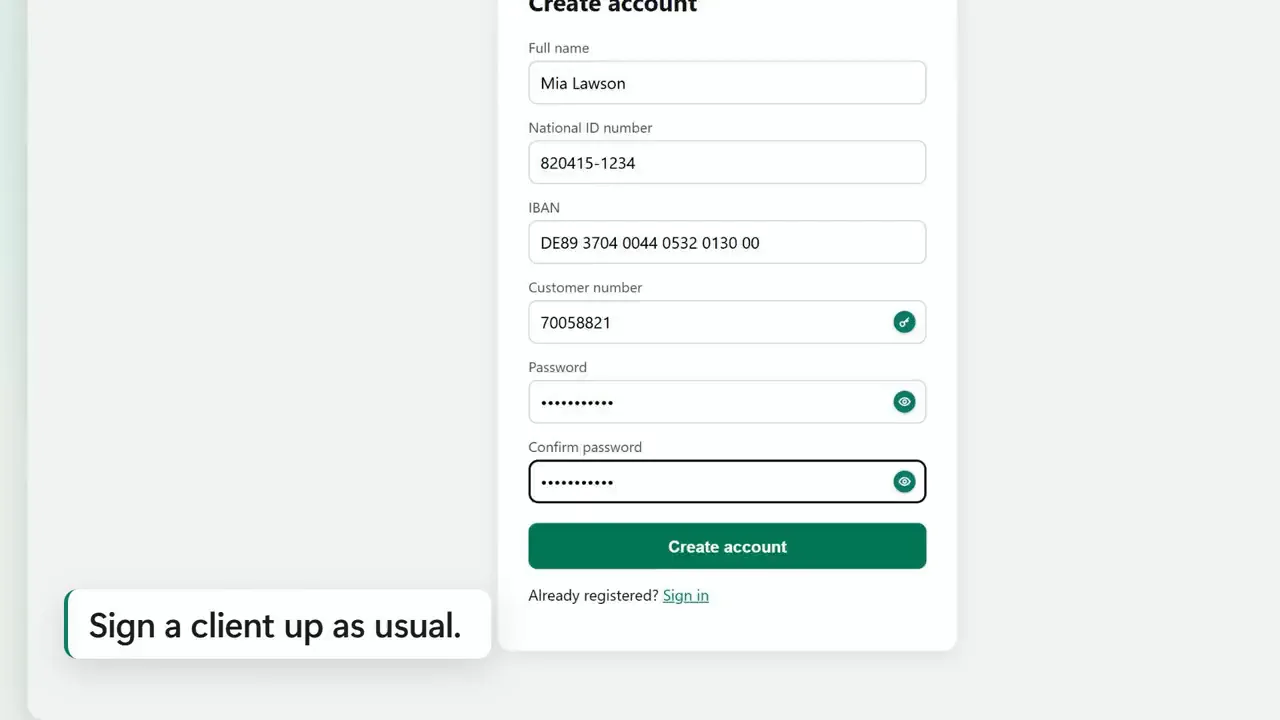
Step 2: Save
After a sign-up, EasyPass offers to save the login with the client's name filled in, plus everything else the form asked for under the site's own labels. ID and bank numbers stay masked until you press their eye.
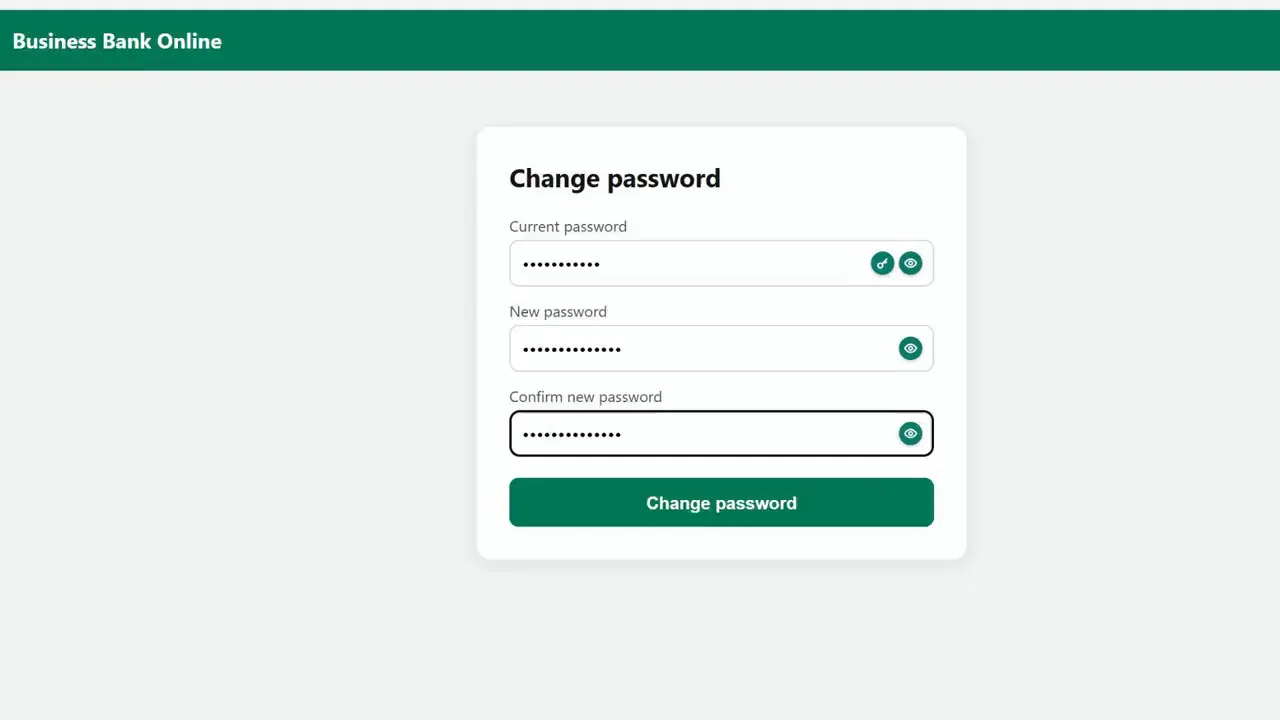
Step 3: Update
Change a password on a site after signing in with EasyPass and it asks to update the saved one. One click, and the vault holds the new password.
Step 4: Search
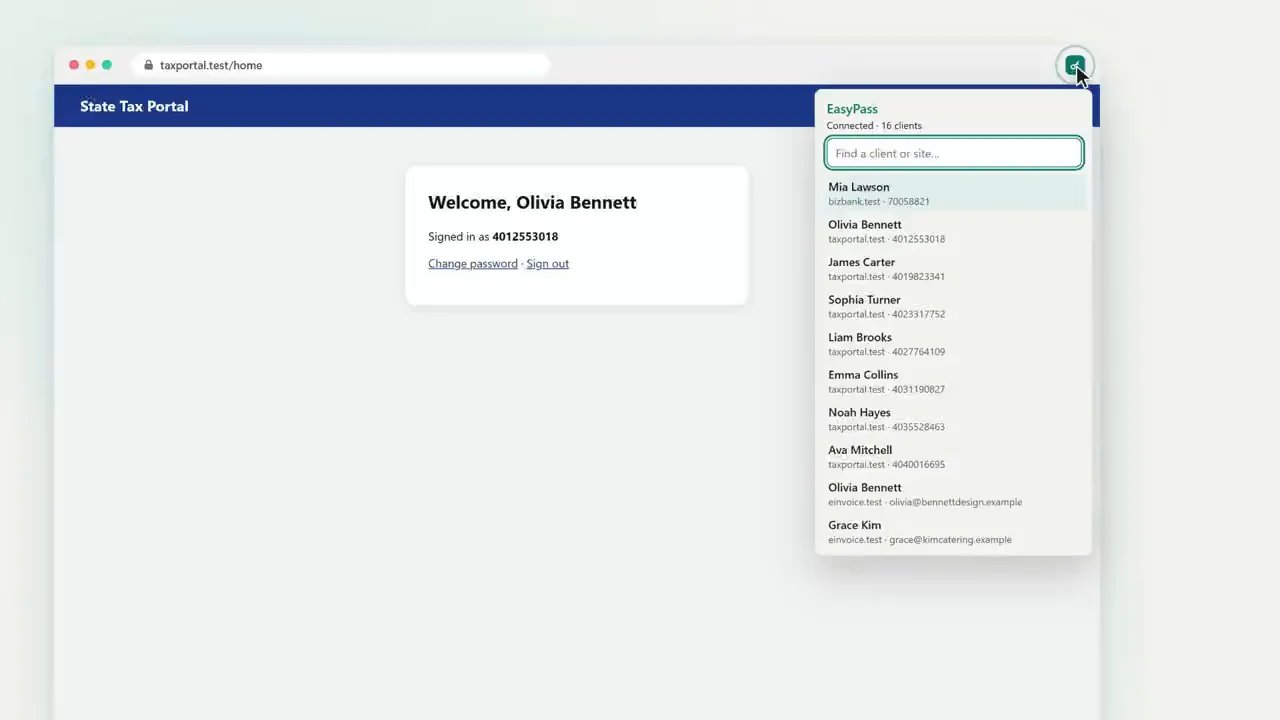
The EasyPass button in Chrome's toolbar searches every site's clients by name, username or site. A click shows the details; the password is shown and copied only on request.
Step 5: Languages
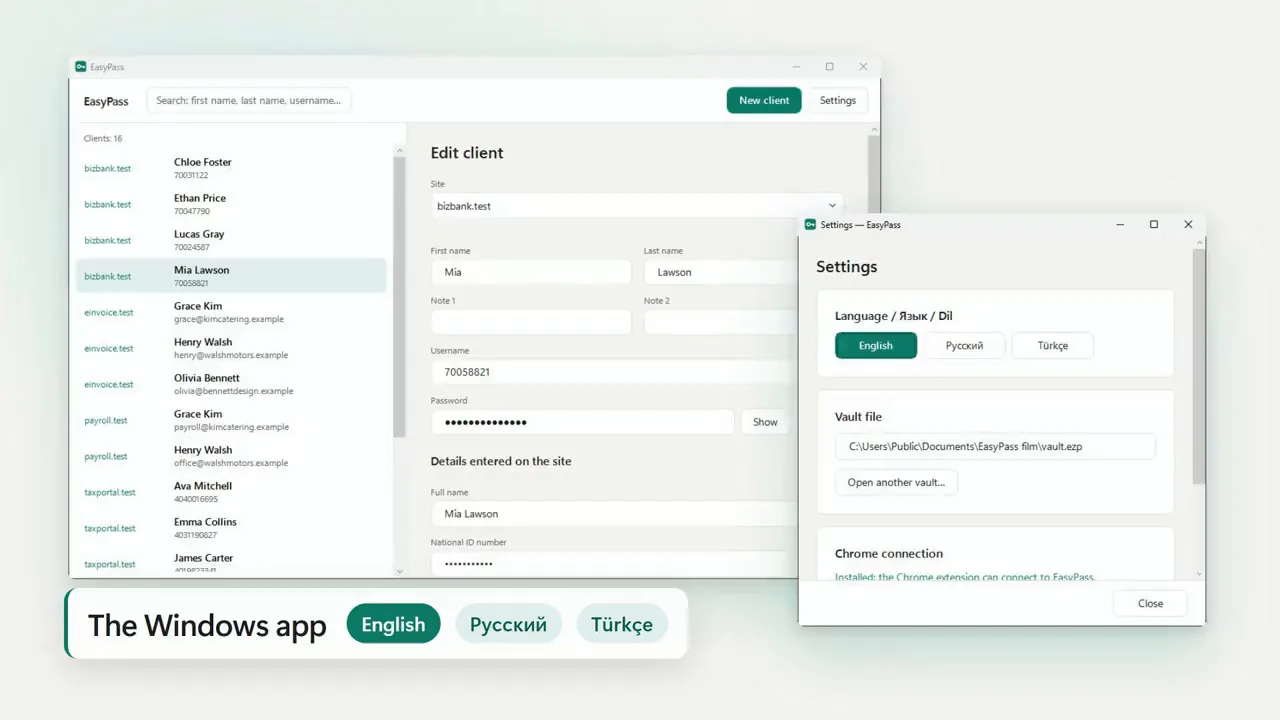
The Windows app adds, edits and deletes clients and shows what a sign-up collected. The app and the extension speak English, Russian and Turkish, and a first install starts in the setup's language.
FIG. 03 / SCREENS
The product, screen by screen
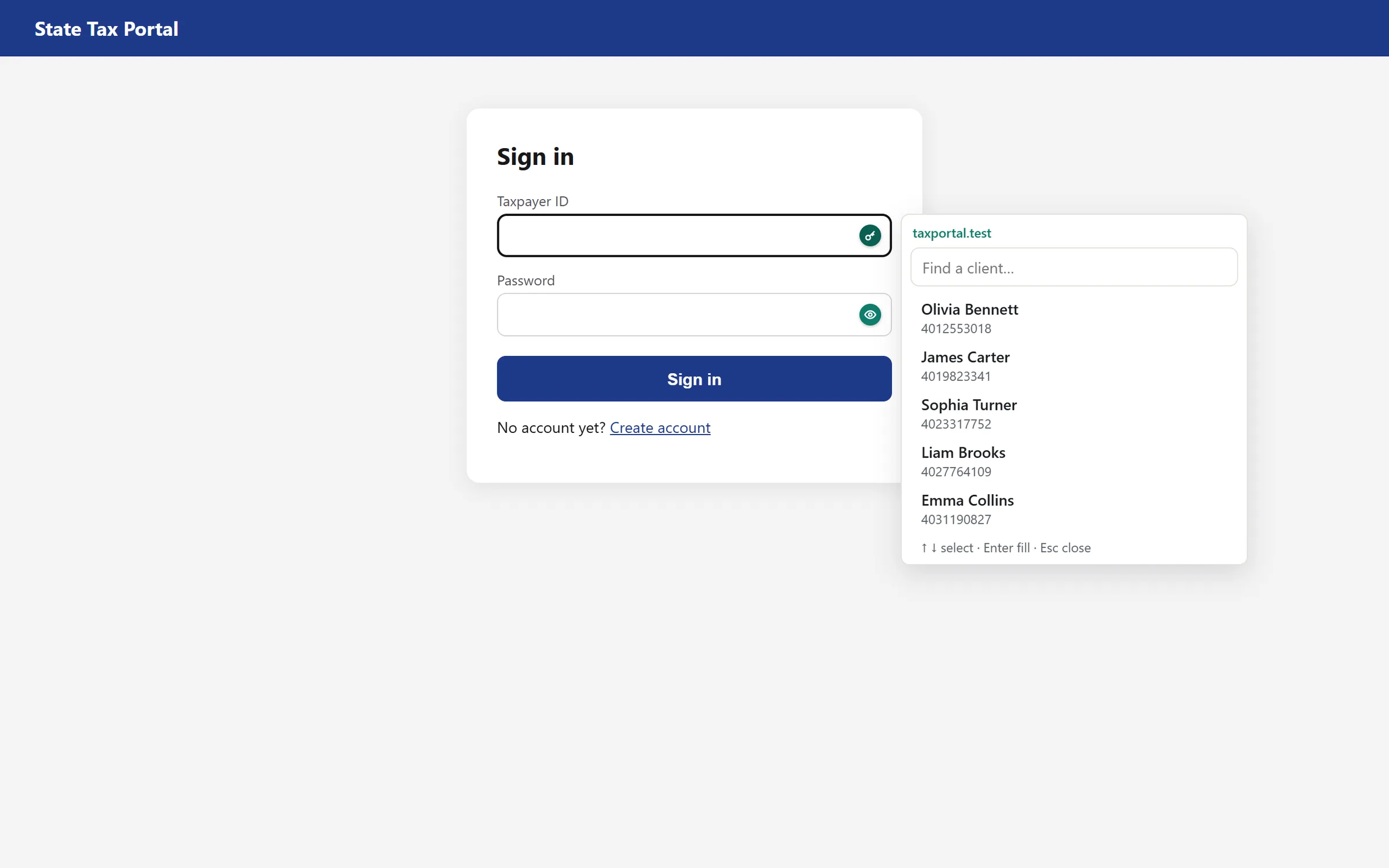
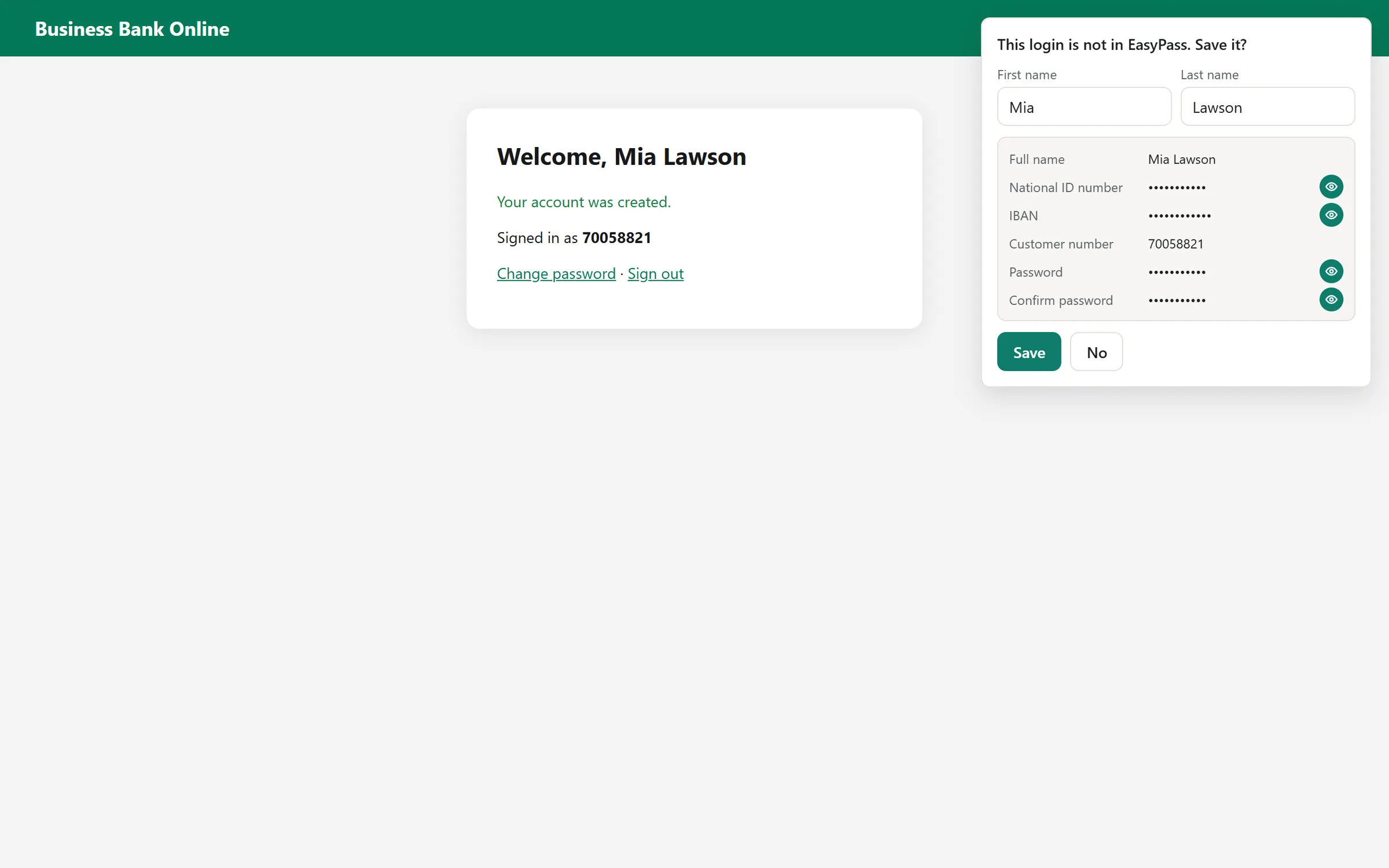
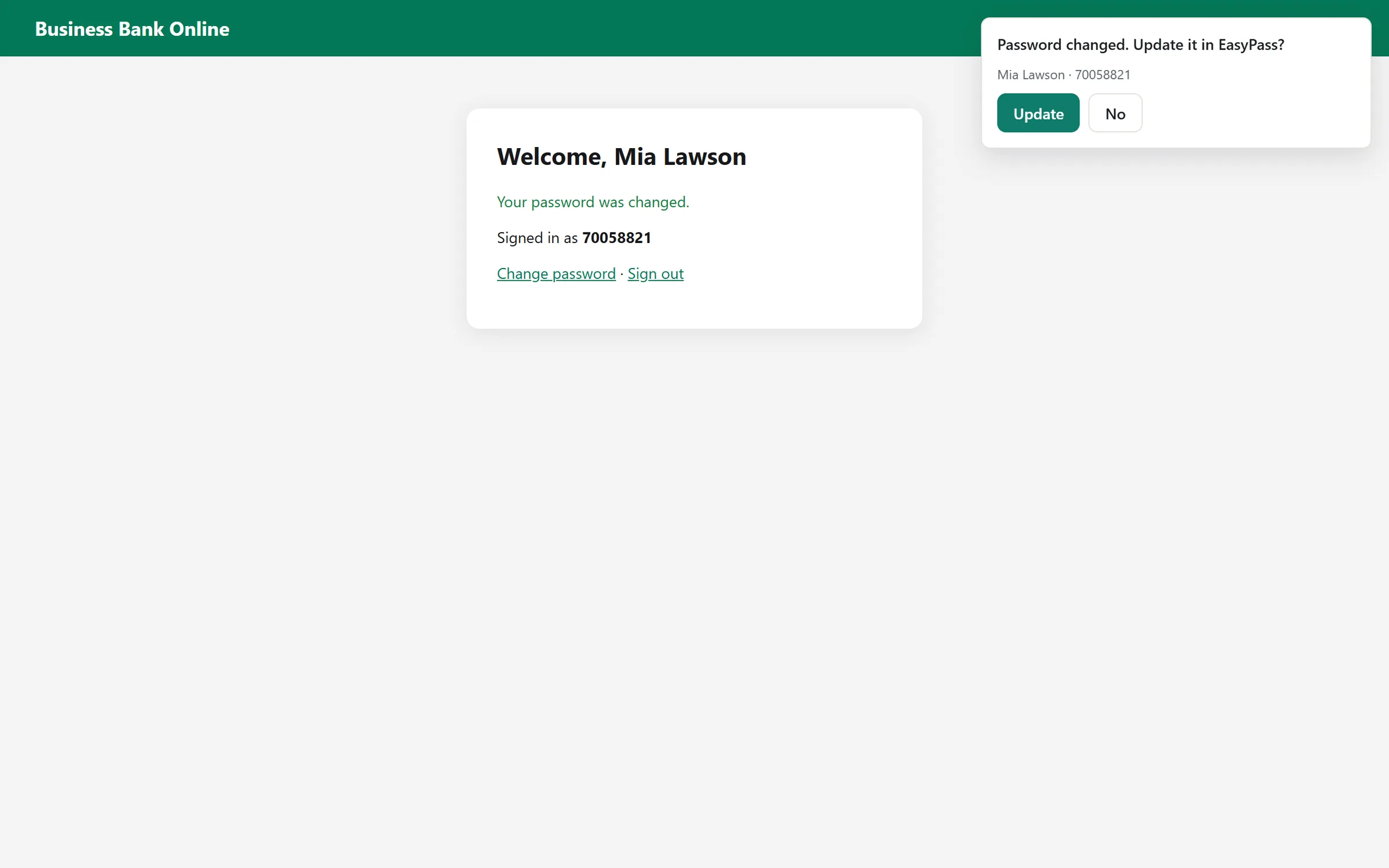
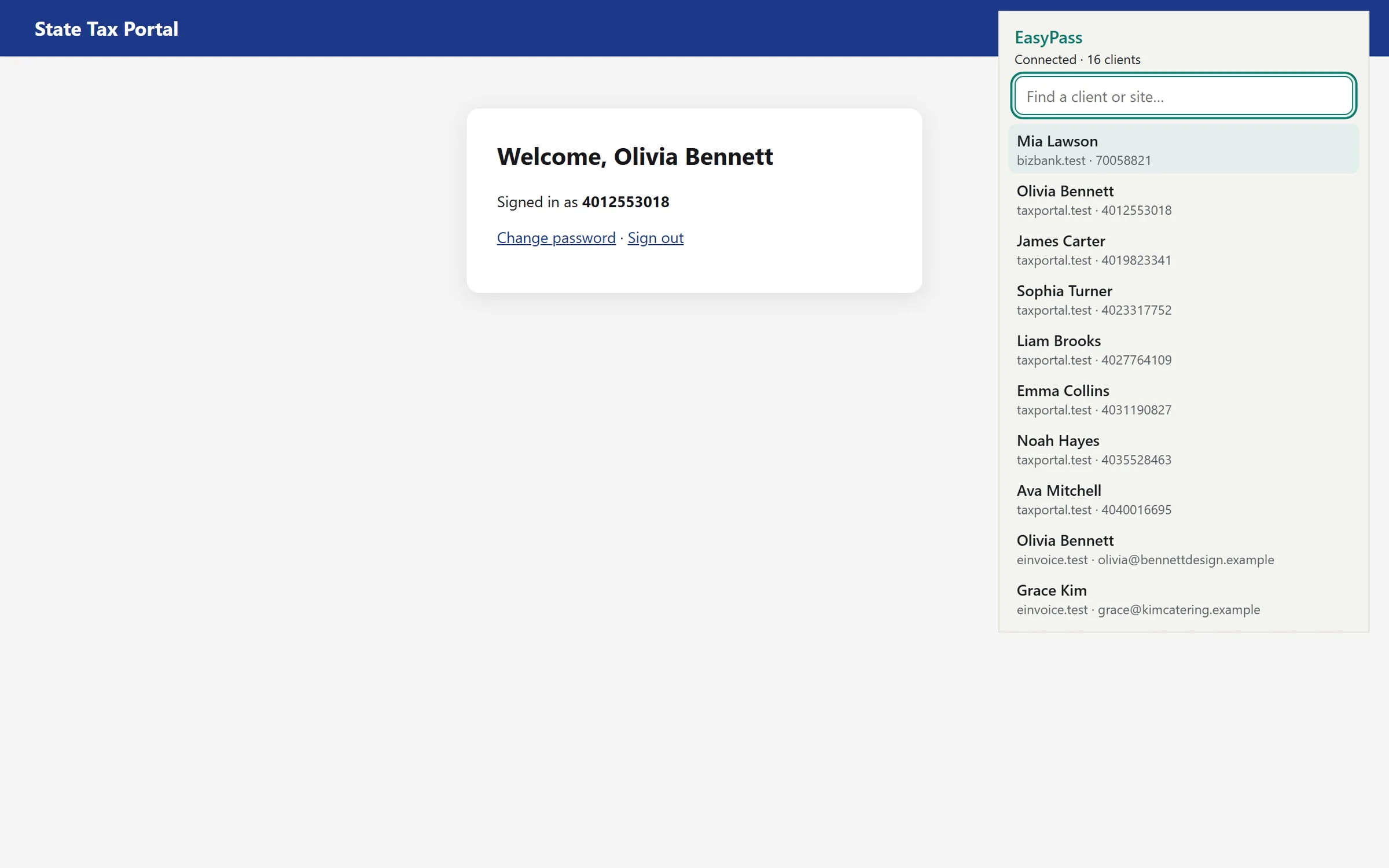
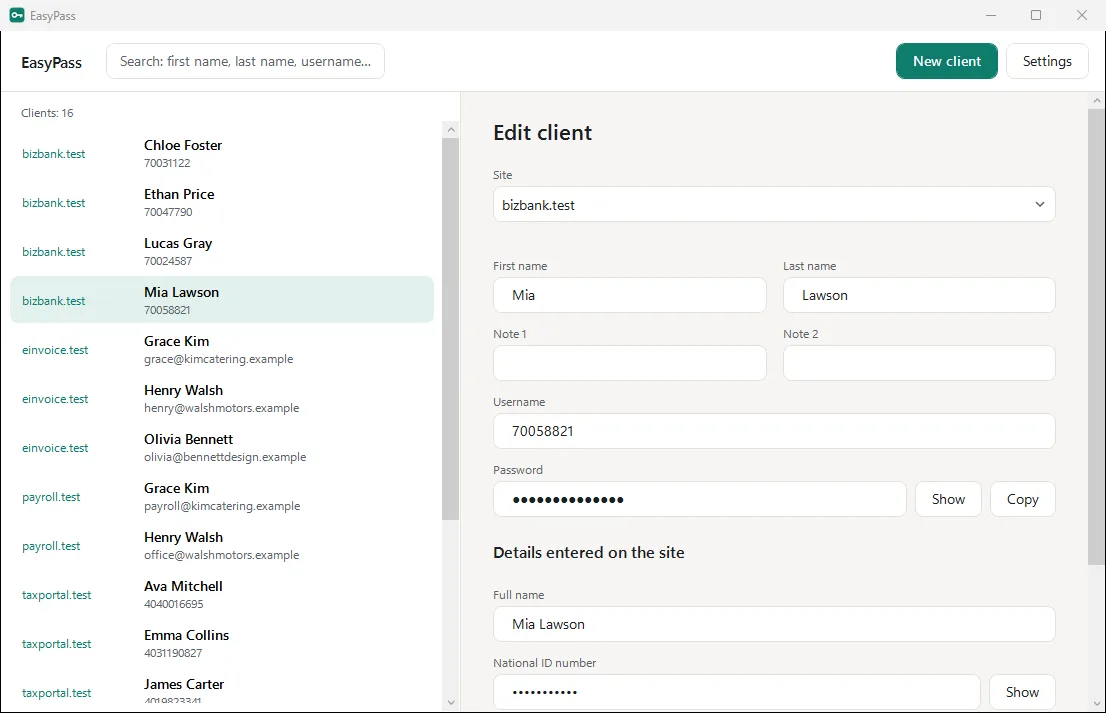
FIG. 04 / DESIGN DIRECTION
Design direction
Made to sit quietly inside other people's websites: a white card with a thin warm-grey border, the system's own type at the page's size, and one accent, a deep teal, for the key and eye icons, the selected client and the primary buttons. The Windows app uses the same palette on a warm off-white, so the extension and the app read as one product.
Palette
- Background#F6F5F2
- Surface#FFFFFF
- Teal#0E7C6B
- Teal tint#E3F1EE
- Ink#1C1F23
Type
- Segoe UI (system)
- Everything in the app and the extension, so it matches Windows and Chrome's own interface
Related systems

ZikirChain
LiveA dhikr counter that feels like prayer beads: the teacher publishes the day's program, you tap, a bead slides. No sign-up, no login.

Genjutsu
LiveGenjutsu replaces the people in a video and keeps the scene, camera, timing and full original soundtrack, with a mask check before every generation.
Mailsort
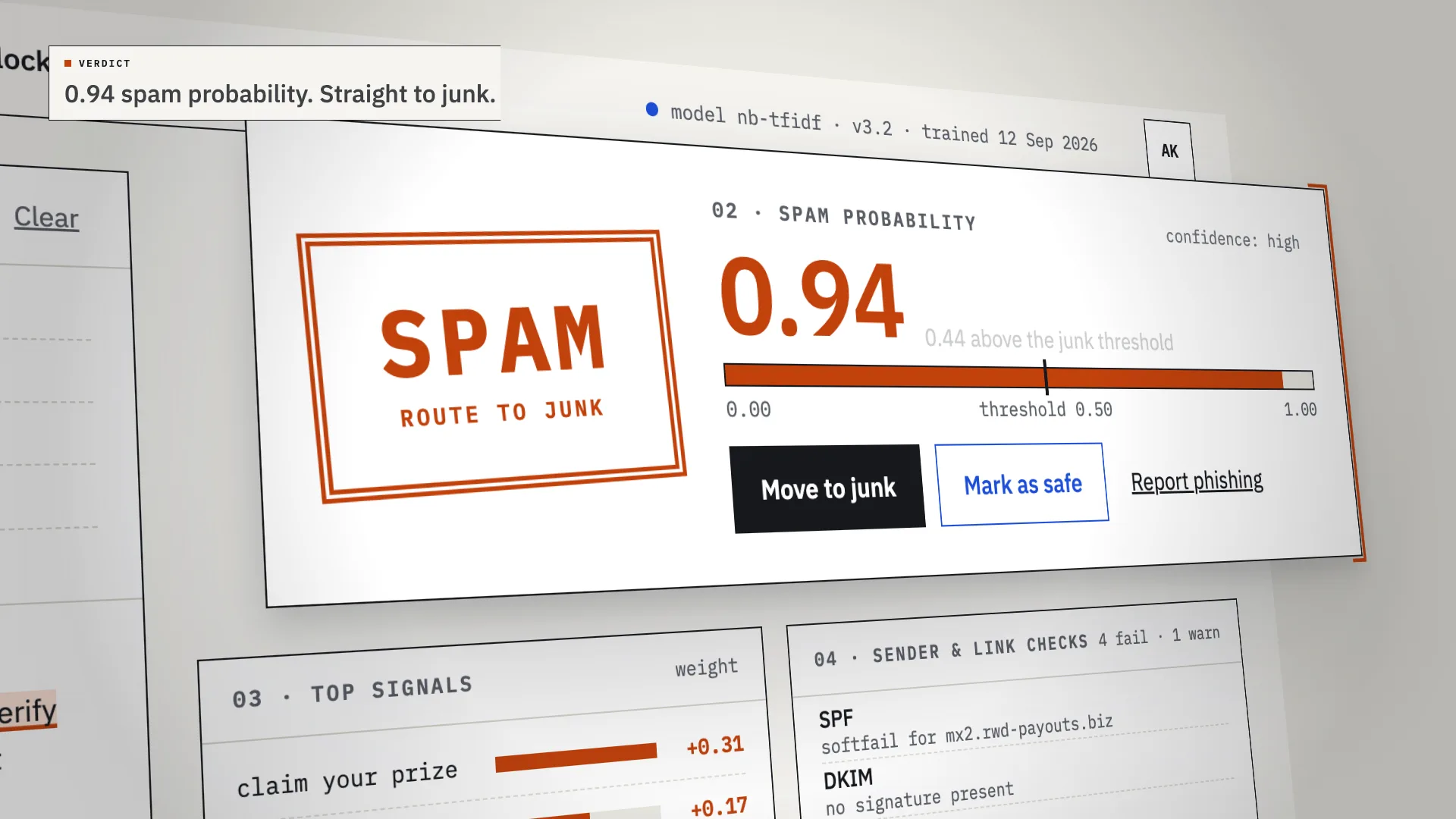
LiveAn AI spam classifier that shows its work: every verdict comes with the phrases, sender checks and links that decided it.
Have a project like this?
Tell me what you want to build. We map it on a 30-minute call.